Citi Solution

Every Solution With Citi Solution

How To Create a Ping Script in Python || Python Ping Script | Citi Solution


 How To Create a Ping Script in Python || Python Ping Script | Citi Solution

Youtube Video

Source Code

import os
ipaddr = "google.com"

ping = os.system("ping " + ipaddr + ' -t')

print(ping)


- May 15, 2022 No comments:
Email ThisBlogThis!Share to XShare to FacebookShare to Pinterest

WHAT IS WEB HOSTING?

Web hosting is a service that allows organizations and individuals to post a website or web page on to the Internet. A web host, or web hosting service provider, is a business that provides the technologies and services needed for the website or webpage to be viewed on the Internet. Websites are hosted or stored, on special computers called servers.

When Internet users want to view your website, all they need to do is type your website address into their browser. Their computer will then connect to your server and your webpages will be delivered to them through the browser.

Most web hosting companies require that you own your domain name in order to host with them. If you do not have a domain name, the web hosting companies will help you purchase one.


- May 11, 2022 No comments:
Email ThisBlogThis!Share to XShare to FacebookShare to Pinterest

python quick graphic project

Python quick graphic project 

Youtube Video

Source Code


import turtle as tl

tl.bgcolor("black")
tl.pensize(5)
tl.speed(0)


for i in range (5):
  for colours in ["red","blue","gray","black","cyan","green","magenta"]:
     tl.color(colours)
      tl.circle(150)
        tl.right(15)
 
tl.hideturtle()

- May 07, 2022 No comments:
Email ThisBlogThis!Share to XShare to FacebookShare to Pinterest

How to Clear Terminal History in Kali Linux | clear_history

How to Clear Terminal History in Kali Linux | clear_history


  1. open ~/.zshrc
  2. add the following line

    alias clear_history='echo "" > ~/.zsh_history & exec $SHELL -l'
    
  3. Save and close the file

  4. Close the console or type zsh
    if you to see the result directly, this will open another zsh shell in the old one
  5. Now you can clear the console by typing clear_history
- January 15, 2022 No comments:
Email ThisBlogThis!Share to XShare to FacebookShare to Pinterest
Labels: ~/.zshrc, basic of computer, Citi, citi Solution, clear_history, How to Clear Terminal History in Kali Linux | clear_history

HTML Chet Sheet

 HTML Chet Sheet 

Read more »
- February 11, 2021 No comments:
Email ThisBlogThis!Share to XShare to FacebookShare to Pinterest
Labels: basic of html, Citi, citi Solution, html, html for beginner, html for beginners full course, html in hindi, learn html in urdu, learn website design urdu, Solution, urdu, what is html

PPPoE (Point-to-Point Protocol over Ethernet)


PPPoE (Point-to-Point Protocol over Ethernet)


PPPoE (Point-to-Point Protocol over Ethernet) is a specification for connecting multiple computer users on an Ethernet local area network to a remote site through common customer premises equipment, which is the telephone company's term for a modem and similar devices. PPPoE can be used to have an office or building full of users share a common Digital Subscriber Line (DSL), cable modem, or wireless connection to the Internet. PPPoE combines the Point-to-Point Protocol (PPP), commonly used in dialup connections, with the Ethernet protocol, which supports multiple users in a local area network. The PPP protocol information is encapsulated within an Ethernet frame.

PPPoE has the advantage that neither the telephone company nor the Internet service provider (ISP) needs to provide any special support. Unlike dialup connections, DSL and cable modem connections are "always on." Since a number of different users are sharing the same physical connection to the remote service provider, a way is needed to keep track of which user traffic should go to and which user should be billed. PPPoE provides for each user-remote site session to learn each other's network addresses (during an initial exchange called "discovery"). Once a session is established between an individual user and the remote site (for example, an Internet service provider), the session can be monitored for billing purposes. Many apartment houses, hotels, and corporations are now providing shared Internet access over DSL lines using Ethernet and PPPoE.
- January 23, 2021 No comments:
Email ThisBlogThis!Share to XShare to FacebookShare to Pinterest
Labels: basic of computer, LAN Topologies, Network LAN, Network Computer, Networking, PPPoE, WAN

What is a WAN?


What is a WAN?

Read more »
- January 23, 2021 No comments:
Email ThisBlogThis!Share to XShare to FacebookShare to Pinterest
Labels: Networking Network Computer Network LAN WAN, What is a WAN?

What's in a LAN?


What's in a LAN?

Read more »
- January 21, 2021 No comments:
Email ThisBlogThis!Share to XShare to FacebookShare to Pinterest
Labels: Basic parts of Computers, LAN Topologies, Local Area Network, What's in a LAN?

What is Network?

Network

What is Network? 

A network consists of two or more computers that are linked in order to share resources (such as printers and CDs), exchange files, or allow electronic communications. The computers on a network may be linked through cables, telephone lines, radio waves, satellites, or infrared light beams.

Two very common types of networks include:

  • Local Area Network (LAN)
  • Wide Area Network (WAN)

You may also see references to a Metropolitan Area Networks (MAN), a wireless LAN (WLAN), or a wireless WAN (WWAN).


Local Area Network

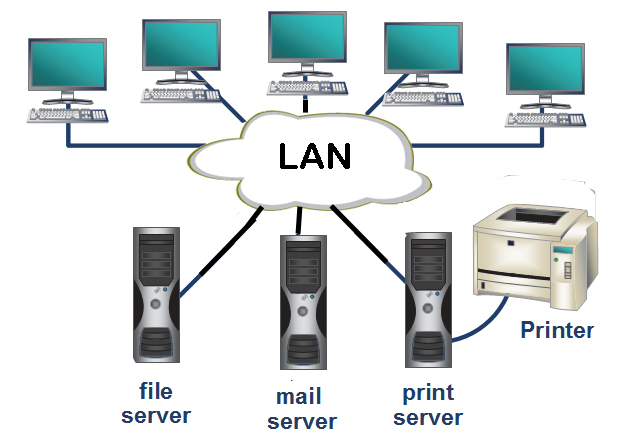
A Local Area Network (LAN) is a network that is confined to a relatively small area. It is generally limited to a geographic area such as a writing lab, school, or building.


Wide Area Network

Wide Area Networks (WANs) connect networks in larger geographic areas, such as Florida, the United States, or the world. Dedicated transoceanic cabling or satellite uplinks may be used to connect this type of global network.



Blog
Youtube
Facebook

- January 21, 2021 No comments:
Email ThisBlogThis!Share to XShare to FacebookShare to Pinterest
Labels: Networking Network Computer Network LAN WAN

How to activate Windows?

Copy this text

@echo off
title Activate Windows 7 / 8 / 8.1 / 10 for FREE!&cls&echo =====================================&echo #Copyright: Citi Solution =====================================&echo.&echo #Supported products:&echo - Windows 7 Professional&echo - Windows 7 Professional N&echo - Windows 7 Professional E&echo - Windows 7 Enterprise&echo - Windows 7 Enterprise N&echo - Windows 7 Enterprise E&echo - Windows 8 Core&echo - Windows 8 Core Single Language&echo - Windows 8 Professional&echo - Windows 8 Professional N&echo - Windows 8 Professional WMC&echo - Windows 8 Enterprise&echo - Windows 8 Enterprise N&echo - Windows 8.1 Core&echo - Windows 8.1 Core N&echo - Windows 8.1 Core Single Language&echo - Windows 8.1 Professional&echo - Windows 8.1 Professional N&echo - Windows 8.1 Professional WMC&echo - Windows 8.1 Enterprise&echo - Windows 8.1 Enterprise N&echo - Windows 10 Home&echo - Windows 10 Home N&echo - Windows 10 Home Single Language&echo - Windows 10 Home Country Specific&echo - Windows 10 Professional&echo - Windows 10 Professional N&echo - Windows 10 Education N&echo - Windows 10 Education N&echo - Windows 10 Enterprise&echo - Windows 10 Enterprise N&echo - Windows 10 Enterprise LTSB&echo - Windows 10 Enterprise LTSB N&echo.&echo.&echo ====================================&echo Activating your Windows... & cscript //nologo c:\windows\system32\slmgr.vbs /ipk FJ82H-XT6CR-J8D7P-XQJJ2-GPDD4 >nul&cscript //nologo c:\windows\system32\slmgr.vbs /ipk MRPKT-YTG23-K7D7T-X2JMM-QY7MG >nul&cscript //nologo c:\windows\system32\slmgr.vbs /ipk W82YF-2Q76Y-63HXB-FGJG9-GF7QX >nul&cscript //nologo c:\windows\system32\slmgr.vbs /ipk 33PXH-7Y6KF-2VJC9-XBBR8-HVTHH >nul&cscript //nologo c:\windows\system32\slmgr.vbs /ipk YDRBP-3D83W-TY26F-D46B2-XCKRJ >nul&cscript //nologo c:\windows\system32\slmgr.vbs /ipk C29WB-22CC8-VJ326-GHFJW-H9DH4 >nul&cscript //nologo c:\windows\system32\slmgr.vbs /ipk BN3D2-R7TKB-3YPBD-8DRP2-27GG4 >nul&cscript //nologo c:\windows\system32\slmgr.vbs /ipk 2WN2H-YGCQR-KFX6K-CD6TF-84YXQ >nul&cscript //nologo c:\windows\system32\slmgr.vbs /ipk NG4HW-VH26C-733KW-K6F98-J8CK4 >nul&cscript //nologo c:\windows\system32\slmgr.vbs /ipk XCVCF-2NXM9-723PB-MHCB7-2RYQQ >nul&cscript //nologo c:\windows\system32\slmgr.vbs /ipk GNBB8-YVD74-QJHX6-27H4K-8QHDG >nul&cscript //nologo c:\windows\system32\slmgr.vbs /ipk 32JNW-9KQ84-P47T8-D8GGY-CWCK7 >nul&cscript //nologo c:\windows\system32\slmgr.vbs /ipk JMNMF-RHW7P-DMY6X-RF3DR-X2BQT >nul&cscript //nologo c:\windows\system32\slmgr.vbs /ipk M9Q9P-WNJJT-6PXPY-DWX8H-6XWKK >nul&cscript //nologo c:\windows\system32\slmgr.vbs /ipk 7B9N3-D94CG-YTVHR-QBPX3-RJP64 >nul&cscript //nologo c:\windows\system32\slmgr.vbs /ipk BB6NG-PQ82V-VRDPW-8XVD2-V8P66 >nul&cscript //nologo c:\windows\system32\slmgr.vbs /ipk GCRJD-8NW9H-F2CDX-CCM8D-9D6T9 >nul&cscript //nologo c:\windows\system32\slmgr.vbs /ipk HMCNV-VVBFX-7HMBH-CTY9B-B4FXY >nul&cscript //nologo c:\windows\system32\slmgr.vbs /ipk 789NJ-TQK6T-6XTH8-J39CJ-J8D3P >nul&cscript //nologo c:\windows\system32\slmgr.vbs /ipk TX9XD-98N7V-6WMQ6-BX7FG-H8Q99 >nul&cscript //nologo c:\windows\system32\slmgr.vbs /ipk 3KHY7-WNT83-DGQKR-F7HPR-844BM >nul&cscript //nologo c:\windows\system32\slmgr.vbs /ipk 7HNRX-D7KGG-3K4RQ-4WPJ4-YTDFH >nul&cscript //nologo c:\windows\system32\slmgr.vbs /ipk PVMJN-6DFY6-9CCP6-7BKTT-D3WVR >nul&cscript //nologo c:\windows\system32\slmgr.vbs /ipk W269N-WFGWX-YVC9B-4J6C9-T83GX >nul&cscript //nologo c:\windows\system32\slmgr.vbs /ipk MH37W-N47XK-V7XM9-C7227-GCQG9 >nul
echo ------------------------------------&echo.&echo.&set i=1
:server
if %i%==1 set KMS_Sev=kms7.MSGuides.com
if %i%==2 set KMS_Sev=kms8.MSGuides.com
if %i%==3 set KMS_Sev=kms9.MSGuides.com
if %i%==4 goto not supported
cscript //nologo c:\windows\system32\slmgr.vbs /skms %KMS_Sev% >nul
cscript //nologo c:\windows\system32\slmgr.vbs /ato | find /i "successfully" && (echo.& echo ====================================== & echo. & choice /n /c YN /m "Would you like to visit my blog [Y,N]?" & if errorlevel 2 exit) || (echo The connection to the server failed! Trying to connect to another one... & echo Please wait... & echo. & echo. & set /a i+=1 & goto server)
explorer "https://bit.ly/3uRQFO2"&goto halt
:notsupported
echo ======================================&echo.&echo Sorry! Your version is not supported.
: halt
pause >nul

Watch Full Video To Activate your Windows


- January 21, 2021 1 comment:
Email ThisBlogThis!Share to XShare to FacebookShare to Pinterest
Labels: How to activate Windows?, Windows 10, Windows 7, Windows 8 or 8.1

 Today I create 2 New Letterhead Designs 
Citi Network Letterhead

Citi Shoes Letterhead
Blog
Youtube
Facebook

- November 23, 2020 No comments:
Email ThisBlogThis!Share to XShare to FacebookShare to Pinterest

HDMI vs DisplayPort vs DVI vs VGA

Difference between HDMI, VGA, DVI, DisplayPort

When connecting a computer to a monitor or TV there are several connections to choose from. Each connection has its pros and cons, so how do you choose? It’s important to note that all of these connections, except for VGA, are digital so while maximum resolutions will vary, the quality does not. This means that 1920×1080 at 60Hz should look the same over HDMI, DVI, and DisplayPort, assuming settings are the same. In the real world, this doesn’t always happen – see the last paragraph about color spaces and screen tearing.


When you’re shopping for a new graphics card, computer, or display, you’ll need to consider how you’re going to connect the display to the computer. HDMI and DisplayPort are different connections that both support 4K resolutions. HDMI is the best choice if you are just connecting a gaming console, Blu-ray player, or streaming device to your TV. DVI is a good choice if you’re looking to get the most out of your high frame rate on a 1080p monitor.

With the latest graphics cards, gaming at 4K resolution and a 120Hz refresh rate is possible. All the newest GPUs, like the AMD RX 480 and NVIDIA’s GeForce GTX 1080 support DisplayPort 1.4. However, you’ll need multiple high-end graphics cards to play games at this high resolution and frame rate. For now, we recommend gaming at 1440p or 1080p at high refresh rates like 120 or 144 Hz.

HDMI
HDMI

HDMI, or High Definition Media Interface, is the standard for HDTVs and is on most computer monitors. It’s easy to use because it carries audio too. If you’re going to plug your PC into a TV HDMI is the way to go. HDMI is fine for most resolutions. If your display or TV has HDMI 1.4, you’ll be limited to 3,820×2160, 4K, at 30 Hz. However, if you’ve got a video card and 4K display with HDMI 2.0, you’ll be able to get 4K at 60 Hz. HDMI was designed to be backward compatible with DVI, so there is no loss of video quality when using an HDMI-to-DVI adapter or cable.

It’s important to note that while you shouldn’t go spending big bucks on HDMI cables since most are the same, different cables have different speed ratings. You’ll need a high speed (category 2) cable for resolutions above 1080i. Fortunately for most people, high-speed cables created for HDMI 1.4 will meet the specifications of HDMI 2.0. Some cables have support for HDMI with Ethernet, but very few devices actually make use of this feature. To recap, there are four kinds of HDMI cables: the high speed with Ethernet, high speed without Ethernet, the standard speed with Ethernet, and standard speed without Ethernet. An expensive high-speed cable will not improve the picture over a $2.50 high-speed cable. This leads us to HDMI. Created by a group of electronics manufacturers, the HDMI standard is a set of guidelines for creating high-bandwidth connections between digital devices. With the right setup, HDMI can make a significant difference in a home-theater system. The current standard can carry 1080p high-definition signals, and it supports eight channels of uncompressed audio, enough for a 7.1 surround-sound system. HDMI can cut down on the number of cables required to connect components, and it can even reduce the number of remote controls needed to watch a movie.


But there's a catch. To take advantage of everything HDMI has to offer, all of the components of a home theater have to be compatible with them. Some of the features HDMI touts also don't yet exist in the consumer marketplace. Also, there's a limit to how long an HDMI cable can be, and some users complain that the limit is too short to support convenient setups.

VGA
VGA

A Video Graphics Array (VGA) connector is a three-row 15-pin DE-15 connector. The 15-pin VGA connector was provided on many video cards, computer monitors, laptop computers, projectors, and high definition television sets. On laptop computers or other small devices, a mini-VGA port was sometimes used in place of the full-sized VGA connector.


Stands for "Video Graphics Array." It is the standard monitor or display interface used in most PCs. Therefore, if a monitor is VGA-compatible, it should work with most new computers. The VGA standard was originally developed by IBM in 1987 and allowed for a display resolution of 640x480 pixels. Since then, many revisions of the standard have been introduced. The most common is Super VGA (SVGA), which allows for resolutions greater than 640x480, such as 800x600 or 1024x768. A standard VGA connection has 15 pins and is shaped like a trapezoid.

A VGA Extender is an electronic device that increases the signal strength from a VGA port, most often from a computer. They are often used in schools, businesses, and homes when multiple monitors are being run off one VGA port, or if the cable between the monitor and the computer will be excessively long (often pictures appear blurry or have minor artifacts if the cable runs too far without a booster). VGA extenders are sometimes called VGA boosters.


Newer video cards often do not have a VGA output. The DVI-I output, which still contains an analog VGA-compatible signal, is often also omitted. Therefore, if the user intends to connect a monitor or projector that features only a VGA input, the user usually will need to facilitate the use of an active converter that receives the digital signal from a DVI-D or HDMI or DisplayPort connector and changes it into analog suitable for VGA. Only older series of video cards and motherboards (for use with an integrated GPU) may still have a VGA or DVI-I connector available.

DVI


DVI
DVI stands for Digital Video Interface.DVI is a popular form of video interface technology made to maximize the quality of flat panel LCD monitors and modern video graphics cards. It was a replacement for the short-lived P&D Plug & Display standard, and a step up from the digital-only DFP format for older flat panels. DVI cables are very popular with video card manufacturers, and most cards nowadays include one or two DVI output ports.

In addition to being used as the standard computer interface, the DVI standard was, for a short while, the digital transfer method of choice for HDTVs and other high-end video displays for TV, movies, and DVDs. Likewise, even a few top-end DVD players have featured DVI outputs in addition to the high-quality analog Component Video. The digital market has now settled on the HDMI interface for high-definition media delivery, with DVI being more exclusive to the computer market.

It was developed to be an industry standard for transmitting digital video content to display devices at resolutions as high as 2560 x 1600. Common devices that utilize the DVI connection are computer monitors and projectors. DVI can even be used with some TVs, although HDMI is more common as only some DVI cables can transmit audio signals. The DVI connector (shown below) may have one of three names depending on the signals it supports: DVI-A (analog only), DVI-D (digital only), or DVI-I (both digital and analog).

DVI-iDVI-d

A DVI-D connector on a graphics card sends out a digital signal only, while a DVI-I connector can send out a digital signal (for digital displays such as flat-panel LCD monitors) as well as an analog signal (for older displays such as a CRT monitor) using a DVI to VGA adaptor shown below. The graphics card is shown in Figure 1 which shows a DVI-I connector contains more pins than the DVI-D connector shown in Figure 2. The extra pins on a DVI-I connector carry the analog signal which the DVI-D connector does not have.

DisplayPort
DisplayPort


There are a lot of examples in the technology history of multiple competing standards that were on the market simultaneously. Just think about the video recorder standards war in the early 1980s between Video 2000, VHS and Betamax. For the youngsters amongst us, VHS finally won mainly because of its lower cost and support by the adult movie industry. More recently, there was the battle between Blu-ray and HD DVD.

So is there also a format war between DisplayPort and HDMI going on? Well, not exactly. While both HDMI and DisplayPort have the same objective (which is sending high-definition digital video and audio from a source device to a display), they were in fact conceived under different constellations

A few years later (2006), another large consortium of PC and chip manufacturers worked to create DisplayPort (DP), a follow-up of the older VGA and DVI standards. The main focus was computer displays and professional IT equipment, so more data-centered markets.

Today’s most common version (for video wall displays), DisplayPort 1.2, supports video resolutions of up to 3840 x 2160 pixels, at a refresh rate of 60 Hz. The official name for this resolution is by the way UHD, but the term 4K is often used as well (although in the movie industry this implies a resolution of 4096 x 2160). It also supports all common 3D video formats. The maximum bandwidth to be sent through a DP 1.2 cable is 17.28 Gbps. DisplayPort 1.4, supporting 5120 x 2800 @60Hz at a bandwidth of 25.92 Gbps, is becoming increasingly popular.
- July 02, 2020 No comments:
Email ThisBlogThis!Share to XShare to FacebookShare to Pinterest
Labels: converting vga to hdmi, displayport, dvi cables, dvi to hdmi, HDMI, HDMI cable, micro hdmi cable, vga, vga cable, vga splitter, vga to hdmi, vga to hdmi cable
Location: Asia

What is Python

What is Python?

Python is a widely-used, interpreted, object-oriented, and high-level programming language with dynamic semantics, used for general-purpose programming.
And while you may know the python as a large snake, the name of the Python programming language comes from an old BBC television comedy sketch series called Monty Python's Flying Circus.
At the height of its success, the Monty Python team were performing their sketches to live audiences across the world, including at the Hollywood Bowl.
Since Monty Python is considered one of the two fundamental nutrients to a programmer (the other being pizza), Python's creator named the language in honor of the TV show.

Who created Python?

One of the amazing features of Python is the fact that it is actually one person's work. Usually, new programming languages are developed and published by large companies employing lots of professionals, and due to copyright rules, it is very hard to name any of the people involved in the project. Python is an exception.
There are not many languages whose authors are known by name. Python was created by Guido van Rossum, born in 1956 in Haarlem, the Netherlands. Of course, Guido van Rossum did not develop and evolve all the Python components himself.
The speed with which Python has spread around the world is a result of the continuous work of thousands (very often anonymous) programmers, testers, users (many of them aren't IT specialists) and enthusiasts, but it must be said that the very first idea (the seed from which Python sprouted) came to one head - Guido's.

- June 19, 2020 No comments:
Email ThisBlogThis!Share to XShare to FacebookShare to Pinterest
Labels: Guido van Rossum, Monty Python's Flying Circus., Python, What is Python?, Who created Python?

What is the difference between a 32-bit and 64-bit CPU?

What is the difference between a 32-bit and 64-bit CPU?

The two main categories of processors are 32-bit and 64-bit. The type of processor a computer has not only affects its overall performance, but it can also dictate what type of software it uses.


32-bit processor
The 32-bit processor was the primary processor used in all computers until the early 1990s. Intel Pentium processors and early AMD processors were 32-bit, which means the operating system and software work with data units that are 32 bits wide. Windows 95, 98, and XP are all 32-bit operating systems.

64-bit processor

The 64-bit computer originated in 1961 when IBM created the IBM 7030 Stretch supercomputer. However, it was not put into use in home computers until the early 2000s. Microsoft released a 64-bit version of Windows XP to be used on computers with a 64-bit processor. Windows Vista, Windows 7, and Windows 8 also come in 64-bit versions.

Differences between a 32-bit and 64-bit CPU

A big difference between 32-bit processors and 64-bit processors is the number of calculations per second they can perform, which affects the speed at which they can complete tasks. 64-bit processors come in dual-core, quad-core, six-core, and eight-core versions for home computing. Multiple cores allow for an increased number of calculations per second that can be performed, which increases the processing power and helps make a computer run faster. Software programs that require many calculations to function smoothly can operate faster and more efficiently on the multi-core 64-bit processors, for the most part.

Another big difference between 32-bit processors and 64-bit processors is the maximum amount of memory (RAM) that is supported. 32-bit computers support a maximum of 4 GB (232 bytes) of memory, whereas 64-bit CPUs can address a theoretical maximum of 18 EB (264 bytes). However, the practical limit of 64-bit CPUs (as of 2018) is 8 TB of addressable RAM.


High amounts of RAM are especially useful for software used in graphic design, engineering, and video editing as these programs have to perform many calculations to render their images.


One thing to note is that 3D graphics programs and games do not benefit much, if at all unless the program is 64-bit. A 32-bit processor is adequate for any program written for a 32-bit processor. In the case of computer games, if it's designed for 32-bit processors, you'll get a lot more performance by upgrading the video card instead of getting a 64-bit processor. However, if the game is designed for 64-bit processors, upgrading to a 64-bit processor will make a big improvement in the performance of the game.


In the end, 64-bit processors are commonplace in home computers today. Most manufacturers build computers with 64-bit processors due to cheaper prices and because more users are now using 64-bit operating systems and programs. Computer parts retailers are offering fewer and fewer 32-bit processors and soon may not offer any at all.

The same, but different

The best example of this difference is right within your file system. If you’re a Windows user, you’ve probably noticed that you have two Program Files folders: One labeled simply Program Files and the other labeled Program Files (x86).

Applications all use shared resources on a Windows system (called DLL files), which are structured differently depending on whether it’s used for 64-bit applications or 32-bit applications. If, for instance, a 32-bit application reaches out for a DLL and finds a 64-bit version, it’s just going to stop working. That’s the problem.


32-bit (x86) architecture has been around for a very long time, and there are still a host of applications that utilize 32-bit architecture — though that’s changing on some platforms. Modern 64-bit systems can run 32-bit and 64-bit software because of a very simple and easy solution: Two separate Program Files directories. When 32-bit applications are sequestered to the appropriate x86 folder, Windows knows to serve up the right DLL — the 32-bit version. Everything in the regular Program Files directory, on the other hand, can access the other content.
- May 14, 2020 1 comment:
Email ThisBlogThis!Share to XShare to FacebookShare to Pinterest
Labels: 64 bit windows 7, cpu, cpu computer, i7, intel processors, processor, windows 10 32 bit, windows 10 64 bit professional, windows 10 pro 64 bit key

Types of RAM

Types of RAM


Dynamic RAM Memory

FPM RAM


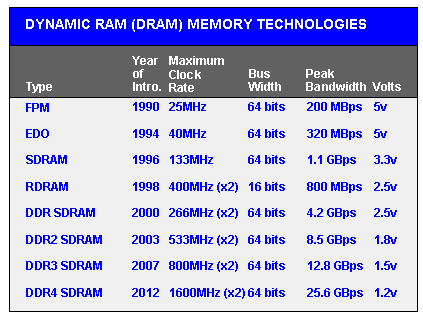
FPM RAM, which stands for “Fast Page Mode RAMÃ is a type of Dynamic RAM (DRAM). The term "Fast Page Mode" comes from the capability of memory being able to access data that is on the same page and can be done with less latency. Most 486 and Pentium based systems from 1995 and earlier use FPM Memory.


FPM RAM


EDO RAM


EDO RAM, which stands for "Extended Data Out RAM" came out in 1995 as a new type of memory available for Pentium based systems. EDO is a modified form of FPM RAM which is commonly referred to as "Hyper Page Mode". Extended Data Out refers to fact that the data output drivers on the memory module are not switched off when the memory controller removes the column address to begin the next cycle, unlike FPM RAM. Most early Penitum based systems use EDO


EDO RAM


SDRAM


SDRAM , which is short for Synchronous DRAM is a type of DRAM that runs in synchronization with the memory bus. Beginning in 1996 most Intel based chipsets began to support SDRAM which made it a popular choice for new systems in 2001.


SDRAM is capable of running at 133MHz which is about three times faster than FPM RAM and twice as fast as EDO RAM. Most Pentium or Celeron systems purchased in 1999 have SDRAM.


SDRAM


DDR RAM


DDR RAM, which stands for "Double Data Rate" which is a type of SDRAM and appeared first on the market around 2001 but didn’t catch on until about 2001 when the mainstream motherboards started supporting it. The difference between SDRAM and DDR RAM is that instead of doubling the clock rate it transfers data twice per clock cycle which effectively doubles the data rate. DDRRAM has become mainstream in the graphics card market and has become the memory standard


DDR RAM


DDR2 RAM


DDR2 RAM, which stands for "Double Data Rate 2" is a newer version of DDR which is twice as fast as the original DDR RAM. DDR2RAM came out in mid 2003 and the first chipsets that supported DDR2 came out in mid 2004. DDR2 still is double data rate just like the original DDR however DDR2-RAM has modified signaling which enables higher speeds to be achieved with more immunity to signal noise and cross-talk between signals.


DDR2 RAM


RAMBUS (RIMM) RAM


RAMBUS RDRAM is a type of ram of its own, it came out in 1999 and was developed from traditional DRAM but its architecture is totally new. The RAMBUS design gives smarter access to the ram meaning that units can prefetch data and free some CPU work. The idea behind RAMBUS RAM is to get small packets of data from the RAM, but at very high clock speeds. For example, SD RAM can get 64bit of information at 100MHz where RAMBUS RAM would get 16bits of data at 800MHz. RIMM ram was generally unsuccessful as Intel had a lot of problems with the RAM timing or signal noise. RD RAM did make an appearance in the Sony Playstation 2 and the Nintendo 64 game consoles.


RDRAM

- May 14, 2020 No comments:
Email ThisBlogThis!Share to XShare to FacebookShare to Pinterest
Labels: Types of RAM

HDD VS SSD

HDD VS SSD

Hard Disk Drive (HDD)
A PC hard disk drive (HDD) is a non-unpredictable memory equipment gadget that controls the situating, perusing and composing of the hard circle, which outfits information stockpiling. Hard circle drives are generally utilized as the principle stockpiling gadget in a PC. HDDs regularly store working framework, programming programs and different documents, and can be found in personal computers, cell phones, purchaser hardware and undertaking stockpiling exhibits in server farms.

A hard plate drive - frequently abbreviated to hard drive - and hard circle are not very similar things, however they are bundled as a unit and either term can allude to the entire unit. 


In a PC, a HDD is generally found in the drive sound and is associated with the motherboard through an ATA, SATA or SCSI cable. The HDD is likewise associated with a force flexibly unit and can keep put away information while shut down.


A hard drive is divided into one of more partitions, which can be further divided into logical drives or volumes. Usually a master boot record (MBR) is found at the beginning of the hard drive and contains a table of partition information. Each logical drive contains a boot record, a file allocation table (FAT) and a root directory for the FAT file system.


Solid-State Drive (SSD)
Solid State Drive (SSD) or Solid-State Disk (SSD), is a capacity gadget that stores information on non-unstable memory. Strong State implies capacity that doesn't require moving parts. Dissimilar to Hard Disk Drive (HDD), there are no moving parts to a SSD. A few focal points of SSD are quicker access time, quiet activity and lower power utilization.

SSDs have a few different favorable circumstances over hard drives too. For instance, the read exhibition of a hard drive decreases when information gets divided, or split up into various areas on the circle. The read presentation of a SSD doesn't reduce dependent on where information is put away on the drive. Accordingly defragmenting a SSD isn't fundamental. Since SSDs don't store information attractively, they are not powerless to information misfortune because of solid attractive fields in closeness to the drive. Moreover, since SSDs have no moving parts, there is far less possibility of a mechanical breakdown. SSDs are additionally lighter, calmer, and utilize less force than hard drives. This is the reason SSDs have gotten a famous decision for PCs. 

While SSDs have numerous points of interest over HDDs, they likewise have a few downsides. Since the SSD innovation is much more up to date than customary hard drive innovation, the cost of SSDs is considerably higher. Starting at mid 2011, SSDs cost around 10 fold the amount of per gigabyte as a hard drive. In this manner, most SSD drives sold today have a lot littler limits than practically identical hard drives. They additionally have a set number or compose cycles, which may make their exhibition corrupt after some time. Luckily, more current SSDs have improved dependability and should most recent quite a while before any decrease in execution is recognizable. As the SSD innovation improves and the costs keep on falling, all things considered, strong state drives will start to substitute hard plate drives for most purposes.


- May 14, 2020 1 comment:
Email ThisBlogThis!Share to XShare to FacebookShare to Pinterest
Labels: Hard Disk Drive, HDD VS SSD

CPU VS GPU

CPU VS GPU


What is a CPU?

Constructed from millions of transistors, the CPU can have multiple processing cores and is commonly referred to as the brain of the computer. It is essential to all modern computing systems as it executes the commands and processes needed for your computer and operating system. The CPU is also important in determining how fast programs can run, from surfing the web to building spreadsheets.

What is a GPU?

The GPU is a processor that is made up of many smaller and more specialized cores. By working together, the cores deliver massive performance when a processing task can be divided up and processed across many cores.

What is the difference?


CPUs and GPUs process tasks in different ways. Regarding interrelations, they are often compared with brain and brawn. A CPU (the brain) can work on a variety of different calculations, while a GPU (the brawn) is best at focusing all the computing abilities on a specific task. That is because a CPU consists of a few cores (up to 24) optimized for sequential serial processing. It is designed to maximize the performance of a single task within a job; however, the range of tasks is wide. On the other hand, a GPU uses thousands of smaller and more efficient cores for a massively parallel architecture aimed at handling multiple functions at the same time.

Modern GPUs provide superior processing power, memory bandwidth and efficiency over their CPU counterparts. They are 50–100 times faster in tasks that require multiple parallel processes, such as machine learning and big data analysis.


CPU

GPU


Central Processing Unit


Graphics Processing Unit


Several cores


Many cores


Low latency


High throughput


Good for serial processing


Good for parallel processing


Can do a handful of operations at once


Can do thousands of operations at once

CPU vs GPU

Architecturally, the CPU is composed of just a few cores with lots of cache memory that can handle a few software threads at a time. In contrast, a GPU is composed of hundreds of cores that can handle thousands of threads simultaneously.
GPUs deliver the once-esoteric technology of parallel computing. It’s a technology with an illustrious pedigree that includes names such as supercomputing genius Seymor Cray. But rather than taking the shape of hulking supercomputers, GPUs put this idea to work in the desktops and gaming consoles of more than a billion gamers.

- May 04, 2020 No comments:
Email ThisBlogThis!Share to XShare to FacebookShare to Pinterest
Labels: Center Processing Unit(CPU), Center Processing Unit(CPU)vs Graphics Processing Unit(GPU).CPU VS GPU, Graphics Processing Unit(GPU)
Newer Posts Older Posts Home
Subscribe to: Posts (Atom)

How To Create a Ping Script in Python || Python Ping Script | Citi Solution

 How To Create a Ping Script in Python || Python Ping Script | Citi Solution Youtube Video Source Code import os ipaddr = "google.com...

  • How to Clear Terminal History in Kali Linux | clear_history
    How to Clear Terminal History in Kali Linux | clear_history open  ~/.zshrc add the following line alias clear_history='echo ""...
  • What is Network?
    Network What is Network?  A network consists of two or more computers that are linked in order to share resources (such as printers and CD...
  • PPPoE (Point-to-Point Protocol over Ethernet)
    PPPoE (Point-to-Point Protocol over Ethernet) PPPoE (Point-to-Point Protocol over Ethernet) is a specification for connecting multiple compu...

Search

Contributors

  • Arslan
  • Daud Mubarik
  • May 2022 (3)
  • January 2022 (1)
  • February 2021 (1)
  • January 2021 (5)
  • November 2020 (1)
  • July 2020 (1)
  • June 2020 (1)
  • May 2020 (4)
  • April 2020 (3)

Labels

  • ~/.zshrc
  • 64 bit windows 7
  • basic of computer
  • basic of html
  • Basic parts of Computers
  • Center Processing Unit(CPU)
  • Center Processing Unit(CPU)vs Graphics Processing Unit(GPU).CPU VS GPU
  • Citi
  • citi Solution
  • clear_history
  • Computer
  • Computer Case
  • converting vga to hdmi
  • cpu
  • cpu computer
  • displayport
  • dvi cables
  • dvi to hdmi
  • Graphic Card
  • Graphics Processing Unit(GPU)
  • Guido van Rossum
  • Hard Disk Drive
  • Hard Drive
  • HDD VS SSD
  • HDMI
  • HDMI cable
  • How to activate Windows?
  • How to Clear Terminal History in Kali Linux | clear_history
  • html
  • html for beginner
  • html for beginners full course
  • html in hindi
  • i7
  • intel processors
  • Introduction of computer
  • Keyboard
  • LAN Topologies
  • learn html in urdu
  • learn website design urdu
  • Local Area Network
  • micro hdmi cable
  • Monitor
  • Monty Python's Flying Circus.
  • Motherboard
  • Mouse
  • Network LAN
  • Network Computer
  • Networking
  • Networking Network Computer Network LAN WAN
  • Power Cord
  • PPPoE
  • processor
  • Python
  • RAM
  • Random Access Memory
  • Solution
  • Types of RAM
  • urdu
  • vga
  • vga cable
  • vga splitter
  • vga to hdmi
  • vga to hdmi cable
  • Video Card
  • WAN
  • What is a WAN?
  • What is computer?
  • what is html
  • What is Python?
  • What's in a LAN?
  • Who created Python?
  • Windows 10
  • windows 10 32 bit
  • windows 10 64 bit professional
  • windows 10 pro 64 bit key
  • Windows 7
  • Windows 8 or 8.1

Report Abuse

Follow us on Facebook

Follow by Emal

Posts
Atom
Posts
All Comments
Atom
All Comments

Stay Connected

Contact Form

Name

Email *

Message *

Search

  • Home

Popular Posts

  • How to Clear Terminal History in Kali Linux | clear_history
  • What is Network?
Awesome Inc. theme. Powered by Blogger.