What is the difference between a 32-bit and 64-bit CPU?

The two main categories of processors are 32-bit and 64-bit. The type of processor a computer has not only affects its overall performance, but it can also dictate what type of software it uses.
32-bit processor
The 32-bit processor was the primary processor used in all computers until the early 1990s. Intel Pentium processors and early AMD processors were 32-bit, which means the operating system and software work with data units that are 32 bits wide. Windows 95, 98, and XP are all 32-bit operating systems.
64-bit processor
The 64-bit computer originated in 1961 when IBM created the IBM 7030 Stretch supercomputer. However, it was not put into use in home computers until the early 2000s. Microsoft released a 64-bit version of Windows XP to be used on computers with a 64-bit processor. Windows Vista, Windows 7, and Windows 8 also come in 64-bit versions.
Another big difference between 32-bit processors and 64-bit processors is the maximum amount of memory (RAM) that is supported. 32-bit computers support a maximum of 4 GB (232 bytes) of memory, whereas 64-bit CPUs can address a theoretical maximum of 18 EB (264 bytes). However, the practical limit of 64-bit CPUs (as of 2018) is 8 TB of addressable RAM.
Differences between a 32-bit and 64-bit CPU
A big difference between 32-bit processors and 64-bit processors is the number of calculations per second they can perform, which affects the speed at which they can complete tasks. 64-bit processors come in dual-core, quad-core, six-core, and eight-core versions for home computing. Multiple cores allow for an increased number of calculations per second that can be performed, which increases the processing power and helps make a computer run faster. Software programs that require many calculations to function smoothly can operate faster and more efficiently on the multi-core 64-bit processors, for the most part.
Another big difference between 32-bit processors and 64-bit processors is the maximum amount of memory (RAM) that is supported. 32-bit computers support a maximum of 4 GB (232 bytes) of memory, whereas 64-bit CPUs can address a theoretical maximum of 18 EB (264 bytes). However, the practical limit of 64-bit CPUs (as of 2018) is 8 TB of addressable RAM.
High amounts of RAM are especially useful for software used in graphic design, engineering, and video editing as these programs have to perform many calculations to render their images.
One thing to note is that 3D graphics programs and games do not benefit much, if at all unless the program is 64-bit. A 32-bit processor is adequate for any program written for a 32-bit processor. In the case of computer games, if it's designed for 32-bit processors, you'll get a lot more performance by upgrading the video card instead of getting a 64-bit processor. However, if the game is designed for 64-bit processors, upgrading to a 64-bit processor will make a big improvement in the performance of the game.
In the end, 64-bit processors are commonplace in home computers today. Most manufacturers build computers with 64-bit processors due to cheaper prices and because more users are now using 64-bit operating systems and programs. Computer parts retailers are offering fewer and fewer 32-bit processors and soon may not offer any at all.
Applications all use shared resources on a Windows system (called DLL files), which are structured differently depending on whether it’s used for 64-bit applications or 32-bit applications. If, for instance, a 32-bit application reaches out for a DLL and finds a 64-bit version, it’s just going to stop working. That’s the problem.
32-bit (x86) architecture has been around for a very long time, and there are still a host of applications that utilize 32-bit architecture — though that’s changing on some platforms. Modern 64-bit systems can run 32-bit and 64-bit software because of a very simple and easy solution: Two separate Program Files directories. When 32-bit applications are sequestered to the appropriate x86 folder, Windows knows to serve up the right DLL — the 32-bit version. Everything in the regular Program Files directory, on the other hand, can access the other content.
The same, but different
The best example of this difference is right within your file system. If you’re a Windows user, you’ve probably noticed that you have two Program Files folders: One labeled simply Program Files and the other labeled Program Files (x86).Applications all use shared resources on a Windows system (called DLL files), which are structured differently depending on whether it’s used for 64-bit applications or 32-bit applications. If, for instance, a 32-bit application reaches out for a DLL and finds a 64-bit version, it’s just going to stop working. That’s the problem.
32-bit (x86) architecture has been around for a very long time, and there are still a host of applications that utilize 32-bit architecture — though that’s changing on some platforms. Modern 64-bit systems can run 32-bit and 64-bit software because of a very simple and easy solution: Two separate Program Files directories. When 32-bit applications are sequestered to the appropriate x86 folder, Windows knows to serve up the right DLL — the 32-bit version. Everything in the regular Program Files directory, on the other hand, can access the other content.
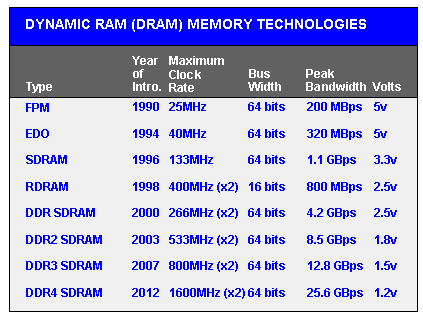
Types of RAM
Types of RAM
FPM RAM
FPM RAM, which stands for “Fast Page Mode RAMÃ is a type of Dynamic RAM (DRAM). The term "Fast Page Mode" comes from the capability of memory being able to access data that is on the same page and can be done with less latency. Most 486 and Pentium based systems from 1995 and earlier use FPM Memory.
EDO RAM
EDO RAM, which stands for "Extended Data Out RAM" came out in 1995 as a new type of memory available for Pentium based systems. EDO is a modified form of FPM RAM which is commonly referred to as "Hyper Page Mode". Extended Data Out refers to fact that the data output drivers on the memory module are not switched off when the memory controller removes the column address to begin the next cycle, unlike FPM RAM. Most early Penitum based systems use EDO
SDRAM
SDRAM , which is short for Synchronous DRAM is a type of DRAM that runs in synchronization with the memory bus. Beginning in 1996 most Intel based chipsets began to support SDRAM which made it a popular choice for new systems in 2001.
SDRAM is capable of running at 133MHz which is about three times faster than FPM RAM and twice as fast as EDO RAM. Most Pentium or Celeron systems purchased in 1999 have SDRAM.
DDR RAM
DDR RAM, which stands for "Double Data Rate" which is a type of SDRAM and appeared first on the market around 2001 but didn’t catch on until about 2001 when the mainstream motherboards started supporting it. The difference between SDRAM and DDR RAM is that instead of doubling the clock rate it transfers data twice per clock cycle which effectively doubles the data rate. DDRRAM has become mainstream in the graphics card market and has become the memory standard
DDR2 RAM
DDR2 RAM, which stands for "Double Data Rate 2" is a newer version of DDR which is twice as fast as the original DDR RAM. DDR2RAM came out in mid 2003 and the first chipsets that supported DDR2 came out in mid 2004. DDR2 still is double data rate just like the original DDR however DDR2-RAM has modified signaling which enables higher speeds to be achieved with more immunity to signal noise and cross-talk between signals.
RAMBUS (RIMM) RAM
RAMBUS RDRAM is a type of ram of its own, it came out in 1999 and was developed from traditional DRAM but its architecture is totally new. The RAMBUS design gives smarter access to the ram meaning that units can prefetch data and free some CPU work. The idea behind RAMBUS RAM is to get small packets of data from the RAM, but at very high clock speeds. For example, SD RAM can get 64bit of information at 100MHz where RAMBUS RAM would get 16bits of data at 800MHz. RIMM ram was generally unsuccessful as Intel had a lot of problems with the RAM timing or signal noise. RD RAM did make an appearance in the Sony Playstation 2 and the Nintendo 64 game consoles.

HDD VS SSD
HDD VS SSD

Hard Disk Drive (HDD)
A PC hard disk drive (HDD) is a non-unpredictable memory equipment gadget that controls the situating, perusing and composing of the hard circle, which outfits information stockpiling. Hard circle drives are generally utilized as the principle stockpiling gadget in a PC. HDDs regularly store working framework, programming programs and different documents, and can be found in personal computers, cell phones, purchaser hardware and undertaking stockpiling exhibits in server farms.
A hard plate drive - frequently abbreviated to hard drive - and hard circle are not very similar things, however they are bundled as a unit and either term can allude to the entire unit.
In a PC, a HDD is generally found in the drive sound and is associated with the motherboard through an ATA, SATA or SCSI cable. The HDD is likewise associated with a force flexibly unit and can keep put away information while shut down.
A hard drive is divided into one of more partitions, which can be further divided into logical drives or volumes. Usually a master boot record (MBR) is found at the beginning of the hard drive and contains a table of partition information. Each logical drive contains a boot record, a file allocation table (FAT) and a root directory for the FAT file system.
| Solid-State Drive (SSD) |
Solid State Drive (SSD) or Solid-State Disk (SSD), is a capacity gadget that stores information on non-unstable memory. Strong State implies capacity that doesn't require moving parts. Dissimilar to Hard Disk Drive (HDD), there are no moving parts to a SSD. A few focal points of SSD are quicker access time, quiet activity and lower power utilization.
SSDs have a few different favorable circumstances over hard drives too. For instance, the read exhibition of a hard drive decreases when information gets divided, or split up into various areas on the circle. The read presentation of a SSD doesn't reduce dependent on where information is put away on the drive. Accordingly defragmenting a SSD isn't fundamental. Since SSDs don't store information attractively, they are not powerless to information misfortune because of solid attractive fields in closeness to the drive. Moreover, since SSDs have no moving parts, there is far less possibility of a mechanical breakdown. SSDs are additionally lighter, calmer, and utilize less force than hard drives. This is the reason SSDs have gotten a famous decision for PCs.
While SSDs have numerous points of interest over HDDs, they likewise have a few downsides. Since the SSD innovation is much more up to date than customary hard drive innovation, the cost of SSDs is considerably higher. Starting at mid 2011, SSDs cost around 10 fold the amount of per gigabyte as a hard drive. In this manner, most SSD drives sold today have a lot littler limits than practically identical hard drives. They additionally have a set number or compose cycles, which may make their exhibition corrupt after some time. Luckily, more current SSDs have improved dependability and should most recent quite a while before any decrease in execution is recognizable. As the SSD innovation improves and the costs keep on falling, all things considered, strong state drives will start to substitute hard plate drives for most purposes.
CPU VS GPU
CPU VS GPU
What is a CPU?
Constructed from millions of transistors, the CPU can have multiple processing cores and is commonly referred to as the brain of the computer. It is essential to all modern computing systems as it executes the commands and processes needed for your computer and operating system. The CPU is also important in determining how fast programs can run, from surfing the web to building spreadsheets.
What is a GPU?
The GPU is a processor that is made up of many smaller and more specialized cores. By working together, the cores deliver massive performance when a processing task can be divided up and processed across many cores.What is the difference?
CPUs and GPUs process tasks in different ways. Regarding interrelations, they are often compared with brain and brawn. A CPU (the brain) can work on a variety of different calculations, while a GPU (the brawn) is best at focusing all the computing abilities on a specific task. That is because a CPU consists of a few cores (up to 24) optimized for sequential serial processing. It is designed to maximize the performance of a single task within a job; however, the range of tasks is wide. On the other hand, a GPU uses thousands of smaller and more efficient cores for a massively parallel architecture aimed at handling multiple functions at the same time.
Modern GPUs provide superior processing power, memory bandwidth and efficiency over their CPU counterparts. They are 50–100 times faster in tasks that require multiple parallel processes, such as machine learning and big data analysis.
CPU
|
GPU
|
|---|---|
Central Processing Unit
|
Graphics Processing Unit
|
Several cores
|
Many cores
|
Low latency
|
High throughput
|
Good for serial processing
|
Good for parallel processing
|
Can do a handful of operations at once
|
Can do thousands of operations at once
|
CPU vs GPU
Architecturally, the CPU is composed of just a few cores with lots of cache memory that can handle a few software threads at a time. In contrast, a GPU is composed of hundreds of cores that can handle thousands of threads simultaneously.
GPUs deliver the once-esoteric technology of parallel computing. It’s a technology with an illustrious pedigree that includes names such as supercomputing genius Seymor Cray. But rather than taking the shape of hulking supercomputers, GPUs put this idea to work in the desktops and gaming consoles of more than a billion gamers.
The Main Parts of a Computer
Central Processing Unit (CPU)
CPU stands for Central Processing Unit. It is also known as a brain of the computer. It carries out instructions and computer programs and performs all the basic arithmetical and logical operations. CPU is installed in the motherboard on a specific area known as CPU socket.
NOTE: The terms "CPU" and "processor" are often used interchangeably. Some technical diagrams even label individual processors as CPUs. While this verbiage is not incorrect, it is more accurate (and less confusing) to describe each processing unit as a CPU, while each processor within a CPU is a processing core.
Random Access Memory (RAM)
RAM stands for Random Access Memory. It is also called “direct access memory”. Random access means that each individual byte in entire memory can be access directly. RAM is used to store data and instructions temporarily. A program must be loaded into RAM before execution.
RAM is volatile memory. It means that its contents are lost when the power is turned off. RAM is read/write memory. CPU can read data from RAM and write data to RAM. It is used to store data and instruction while it is being executed. RAM is also called main memory or primary storage.
RAM is of two types −
- Static RAM (SRAM)
- Dynamic RAM (DRAM)
Hard Drive
Hard disk drives have been the dominant type of storage since the early days of computers. A hard disk drive consists of a rigid disc made with non-magnetic material, which is coated with a thin layer of magnetic material. Data is stored by magnetizing this thin film. The disk spins at a high speed and a magnetic head mounted on a moving arm is used to read and write data. A typical hard disk drive operates at a speed of 7,200 rpm (rotations per minute), so you will often see this number as part of the technical specifications of a computer. The spinning of the disk is also the source of the humming noise of a computer, although most modern hard disk drives are fairly quiet.
In general, hard disk drives are very robust and can be used for many years without problems. However, hard disk drives can fail and one of the most common reasons is a head crash. This occurs when the magnetic head scratches the magnetic film. This typically happens as a result of a physical shock, like dropping a computer while it's on. When your hard drives experience mechanical failure you can often hear a grinding or scratching sound. Such a crash results in data loss since the magnetic film gets damaged. It is, therefore, always a good idea to have a backup copy of the important files on your hard drive.
Motherboard
The motherboard (sometimes called the mainboard) is the main circuit board inside a personal computer. Other vital system components like the central processing unit (CPU) and random access memory (RAM) modules are connected directly to the motherboard via slots or sockets designed specifically for those components. The motherboard will also provide a number of expansion slots designed to accommodate add-on cards such as video graphics adapter (VGA) cards and network interface cards (NICs).
Various other connectors and ports are built in to the motherboard to enable the connection of both internal secondary storage devices such as hard disk drives and optical drives, and peripheral (external) devices such as a mouse, keyboard and printer. There are also sockets to allow the motherboard to be connected to a suitable power supply unit (PSU). The motherboard is effectively a backplane that connects together all of the devices that make up a computer system. It also supplies power to many of those devices.
Graphics Card
A graphics card is a type of display adapter or video card installed within most computing devices to display graphical data with high clarity, color, definition and overall appearance. A graphics card provides high-quality visual display by processing and executing graphical data using advanced graphical techniques, features and functions.
A graphics card is also known as a graphics adapter, graphics controller, graphics accelerator card or graphics board.
A graphics card is primarily designed to remove the graphical processing tasks from the processor or RAM. It includes a dedicated graphical processing unit (GPU) and a dedicated RAM that help it to process graphical data quickly. Like most processors, a graphics card also has a dedicated heat sink to keep the heat out of the GPU. A graphics card enables the display of 3-D images, image rasterization, higher pixel ration, a broader range of colors and more. Moreover, a graphics card includes various expansion ports such as AGP, HDMI, TV and multiple monitor connectivity. A graphics card can be integrated within the motherboard or be added on as an extension card
Basic Parts of a Computer
Introduction
The basic parts of a desktop computer are the computer case, monitor, keyboard, mouse, and power cord. Each part plays an important role whenever you use a computer.
Computer Case
A computer case, also known as a computer chassis, tower, system unit, CPU (when referring to the case as a whole rather than the processor), or cabinet, is the enclosure that contains most of the components of a personal computer (usually excluding the display, keyboard, and mouse). Cases are usually constructed from steel (often SECC—steel, electrogalvanized, cold-rolled, coil) or aluminium. Plastic is sometimes used, and other materials such as glass, wood and even Lego bricks have appeared in home-built cases.
A monitor is a piece of computer hardware that displays the video and graphics information generated by a connected computer through the computer's video card. Monitors are similar to TVs but usually display information at a much higher resolution. Also unlike televisions, monitors typically sit atop a desk rather than being mounted on a wall.
Keyboard
A keyboard is a peripheral device that enables a user to input text into a computer or any other electronic machinery. A keyboard is an input device and is the most basic way for the user to communicate with a computer. This device is patterned after its predecessor, the typewriter, from which the keyboard inherited its layout, although the keys or letters are arranged to function as electronic switches. The keys include punctuation, alphanumeric and special keys like the Windows key and various multimedia keys, which have specific functions assigned to them.
Mouse
A computer mouse is an input device that is used with a computer. Moving a mouse along a flat surface can move the cursor to different items on the screen. Items can be moved or selected by pressing the mouse buttons (called clicking).[1] Today's mice have two buttons, the left button and right button, with a scroll wheel in between the two. Today, many computer mice use wireless technology and have no wire.
Power Cord
A power cord, line cord, or mains cable is an electrical cable that temporarily connects an appliance to the mains electricity supply via a wall socket or extension cord. The terms are generally used for cables using a power plug to connect to a single-phase alternating current power source at the local line voltage—(generally 100 to 240 volts, depending on the location). The terms power cable, mains lead, flex or kettle lead are also used. A lamp cord (also known as a zip cord) is a light-weight, ungrounded, single-insulated two-wire cord used for small loads such as a table or floor lamp.
Subscribe to:
Posts (Atom)
How To Create a Ping Script in Python || Python Ping Script | Citi Solution
How To Create a Ping Script in Python || Python Ping Script | Citi Solution Youtube Video Source Code import os ipaddr = "google.com...
-
How to Clear Terminal History in Kali Linux | clear_history open ~/.zshrc add the following line alias clear_history='echo ""...
-
Network What is Network? A network consists of two or more computers that are linked in order to share resources (such as printers and CD...
-
PPPoE (Point-to-Point Protocol over Ethernet) PPPoE (Point-to-Point Protocol over Ethernet) is a specification for connecting multiple compu...