HDMI vs DisplayPort vs DVI vs VGA
Difference between HDMI, VGA, DVI, DisplayPort
When connecting a computer to a monitor or TV there are several connections to choose from. Each connection has its pros and cons, so how do you choose? It’s important to note that all of these connections, except for VGA, are digital so while maximum resolutions will vary, the quality does not. This means that 1920×1080 at 60Hz should look the same over HDMI, DVI, and DisplayPort, assuming settings are the same. In the real world, this doesn’t always happen – see the last paragraph about color spaces and screen tearing.
When you’re shopping for a new graphics card, computer, or display, you’ll need to consider how you’re going to connect the display to the computer. HDMI and DisplayPort are different connections that both support 4K resolutions. HDMI is the best choice if you are just connecting a gaming console, Blu-ray player, or streaming device to your TV. DVI is a good choice if you’re looking to get the most out of your high frame rate on a 1080p monitor.
With the latest graphics cards, gaming at 4K resolution and a 120Hz refresh rate is possible. All the newest GPUs, like the AMD RX 480 and NVIDIA’s GeForce GTX 1080 support DisplayPort 1.4. However, you’ll need multiple high-end graphics cards to play games at this high resolution and frame rate. For now, we recommend gaming at 1440p or 1080p at high refresh rates like 120 or 144 Hz.
HDMI
It’s important to note that while you shouldn’t go spending big bucks on HDMI cables since most are the same, different cables have different speed ratings. You’ll need a high speed (category 2) cable for resolutions above 1080i. Fortunately for most people, high-speed cables created for HDMI 1.4 will meet the specifications of HDMI 2.0. Some cables have support for HDMI with Ethernet, but very few devices actually make use of this feature. To recap, there are four kinds of HDMI cables: the high speed with Ethernet, high speed without Ethernet, the standard speed with Ethernet, and standard speed without Ethernet. An expensive high-speed cable will not improve the picture over a $2.50 high-speed cable. This leads us to HDMI. Created by a group of electronics manufacturers, the HDMI standard is a set of guidelines for creating high-bandwidth connections between digital devices. With the right setup, HDMI can make a significant difference in a home-theater system. The current standard can carry 1080p high-definition signals, and it supports eight channels of uncompressed audio, enough for a 7.1 surround-sound system. HDMI can cut down on the number of cables required to connect components, and it can even reduce the number of remote controls needed to watch a movie.
But there's a catch. To take advantage of everything HDMI has to offer, all of the components of a home theater have to be compatible with them. Some of the features HDMI touts also don't yet exist in the consumer marketplace. Also, there's a limit to how long an HDMI cable can be, and some users complain that the limit is too short to support convenient setups.
VGA
A Video Graphics Array (VGA) connector is a three-row 15-pin DE-15 connector. The 15-pin VGA connector was provided on many video cards, computer monitors, laptop computers, projectors, and high definition television sets. On laptop computers or other small devices, a mini-VGA port was sometimes used in place of the full-sized VGA connector.Stands for "Video Graphics Array." It is the standard monitor or display interface used in most PCs. Therefore, if a monitor is VGA-compatible, it should work with most new computers. The VGA standard was originally developed by IBM in 1987 and allowed for a display resolution of 640x480 pixels. Since then, many revisions of the standard have been introduced. The most common is Super VGA (SVGA), which allows for resolutions greater than 640x480, such as 800x600 or 1024x768. A standard VGA connection has 15 pins and is shaped like a trapezoid.
A VGA Extender is an electronic device that increases the signal strength from a VGA port, most often from a computer. They are often used in schools, businesses, and homes when multiple monitors are being run off one VGA port, or if the cable between the monitor and the computer will be excessively long (often pictures appear blurry or have minor artifacts if the cable runs too far without a booster). VGA extenders are sometimes called VGA boosters.
Newer video cards often do not have a VGA output. The DVI-I output, which still contains an analog VGA-compatible signal, is often also omitted. Therefore, if the user intends to connect a monitor or projector that features only a VGA input, the user usually will need to facilitate the use of an active converter that receives the digital signal from a DVI-D or HDMI or DisplayPort connector and changes it into analog suitable for VGA. Only older series of video cards and motherboards (for use with an integrated GPU) may still have a VGA or DVI-I connector available.
DVI
DVI stands for Digital Video Interface.DVI is a popular form of video interface technology made to maximize the quality of flat panel LCD monitors and modern video graphics cards. It was a replacement for the short-lived P&D Plug & Display standard, and a step up from the digital-only DFP format for older flat panels. DVI cables are very popular with video card manufacturers, and most cards nowadays include one or two DVI output ports.
In addition to being used as the standard computer interface, the DVI standard was, for a short while, the digital transfer method of choice for HDTVs and other high-end video displays for TV, movies, and DVDs. Likewise, even a few top-end DVD players have featured DVI outputs in addition to the high-quality analog Component Video. The digital market has now settled on the HDMI interface for high-definition media delivery, with DVI being more exclusive to the computer market.
It was developed to be an industry standard for transmitting digital video content to display devices at resolutions as high as 2560 x 1600. Common devices that utilize the DVI connection are computer monitors and projectors. DVI can even be used with some TVs, although HDMI is more common as only some DVI cables can transmit audio signals. The DVI connector (shown below) may have one of three names depending on the signals it supports: DVI-A (analog only), DVI-D (digital only), or DVI-I (both digital and analog).
A DVI-D connector on a graphics card sends out a digital signal only, while a DVI-I connector can send out a digital signal (for digital displays such as flat-panel LCD monitors) as well as an analog signal (for older displays such as a CRT monitor) using a DVI to VGA adaptor shown below. The graphics card is shown in Figure 1 which shows a DVI-I connector contains more pins than the DVI-D connector shown in Figure 2. The extra pins on a DVI-I connector carry the analog signal which the DVI-D connector does not have.
DisplayPort
There are a lot of examples in the technology history of multiple competing standards that were on the market simultaneously. Just think about the video recorder standards war in the early 1980s between Video 2000, VHS and Betamax. For the youngsters amongst us, VHS finally won mainly because of its lower cost and support by the adult movie industry. More recently, there was the battle between Blu-ray and HD DVD.
So is there also a format war between DisplayPort and HDMI going on? Well, not exactly. While both HDMI and DisplayPort have the same objective (which is sending high-definition digital video and audio from a source device to a display), they were in fact conceived under different constellations
A few years later (2006), another large consortium of PC and chip manufacturers worked to create DisplayPort (DP), a follow-up of the older VGA and DVI standards. The main focus was computer displays and professional IT equipment, so more data-centered markets.
Today’s most common version (for video wall displays), DisplayPort 1.2, supports video resolutions of up to 3840 x 2160 pixels, at a refresh rate of 60 Hz. The official name for this resolution is by the way UHD, but the term 4K is often used as well (although in the movie industry this implies a resolution of 4096 x 2160). It also supports all common 3D video formats. The maximum bandwidth to be sent through a DP 1.2 cable is 17.28 Gbps. DisplayPort 1.4, supporting 5120 x 2800 @60Hz at a bandwidth of 25.92 Gbps, is becoming increasingly popular.
What is Python
What is Python?
Python is a widely-used, interpreted, object-oriented, and high-level programming language with dynamic semantics, used for general-purpose programming.
And while you may know the python as a large snake, the name of the Python programming language comes from an old BBC television comedy sketch series called Monty Python's Flying Circus.
At the height of its success, the Monty Python team were performing their sketches to live audiences across the world, including at the Hollywood Bowl.
Since Monty Python is considered one of the two fundamental nutrients to a programmer (the other being pizza), Python's creator named the language in honor of the TV show.
Who created Python?
One of the amazing features of Python is the fact that it is actually one person's work. Usually, new programming languages are developed and published by large companies employing lots of professionals, and due to copyright rules, it is very hard to name any of the people involved in the project. Python is an exception.
There are not many languages whose authors are known by name. Python was created by Guido van Rossum, born in 1956 in Haarlem, the Netherlands. Of course, Guido van Rossum did not develop and evolve all the Python components himself.
The speed with which Python has spread around the world is a result of the continuous work of thousands (very often anonymous) programmers, testers, users (many of them aren't IT specialists) and enthusiasts, but it must be said that the very first idea (the seed from which Python sprouted) came to one head - Guido's.
What is the difference between a 32-bit and 64-bit CPU?

The two main categories of processors are 32-bit and 64-bit. The type of processor a computer has not only affects its overall performance, but it can also dictate what type of software it uses.
32-bit processor
The 32-bit processor was the primary processor used in all computers until the early 1990s. Intel Pentium processors and early AMD processors were 32-bit, which means the operating system and software work with data units that are 32 bits wide. Windows 95, 98, and XP are all 32-bit operating systems.
64-bit processor
The 64-bit computer originated in 1961 when IBM created the IBM 7030 Stretch supercomputer. However, it was not put into use in home computers until the early 2000s. Microsoft released a 64-bit version of Windows XP to be used on computers with a 64-bit processor. Windows Vista, Windows 7, and Windows 8 also come in 64-bit versions.
Another big difference between 32-bit processors and 64-bit processors is the maximum amount of memory (RAM) that is supported. 32-bit computers support a maximum of 4 GB (232 bytes) of memory, whereas 64-bit CPUs can address a theoretical maximum of 18 EB (264 bytes). However, the practical limit of 64-bit CPUs (as of 2018) is 8 TB of addressable RAM.
Differences between a 32-bit and 64-bit CPU
A big difference between 32-bit processors and 64-bit processors is the number of calculations per second they can perform, which affects the speed at which they can complete tasks. 64-bit processors come in dual-core, quad-core, six-core, and eight-core versions for home computing. Multiple cores allow for an increased number of calculations per second that can be performed, which increases the processing power and helps make a computer run faster. Software programs that require many calculations to function smoothly can operate faster and more efficiently on the multi-core 64-bit processors, for the most part.
Another big difference between 32-bit processors and 64-bit processors is the maximum amount of memory (RAM) that is supported. 32-bit computers support a maximum of 4 GB (232 bytes) of memory, whereas 64-bit CPUs can address a theoretical maximum of 18 EB (264 bytes). However, the practical limit of 64-bit CPUs (as of 2018) is 8 TB of addressable RAM.
High amounts of RAM are especially useful for software used in graphic design, engineering, and video editing as these programs have to perform many calculations to render their images.
One thing to note is that 3D graphics programs and games do not benefit much, if at all unless the program is 64-bit. A 32-bit processor is adequate for any program written for a 32-bit processor. In the case of computer games, if it's designed for 32-bit processors, you'll get a lot more performance by upgrading the video card instead of getting a 64-bit processor. However, if the game is designed for 64-bit processors, upgrading to a 64-bit processor will make a big improvement in the performance of the game.
In the end, 64-bit processors are commonplace in home computers today. Most manufacturers build computers with 64-bit processors due to cheaper prices and because more users are now using 64-bit operating systems and programs. Computer parts retailers are offering fewer and fewer 32-bit processors and soon may not offer any at all.
Applications all use shared resources on a Windows system (called DLL files), which are structured differently depending on whether it’s used for 64-bit applications or 32-bit applications. If, for instance, a 32-bit application reaches out for a DLL and finds a 64-bit version, it’s just going to stop working. That’s the problem.
32-bit (x86) architecture has been around for a very long time, and there are still a host of applications that utilize 32-bit architecture — though that’s changing on some platforms. Modern 64-bit systems can run 32-bit and 64-bit software because of a very simple and easy solution: Two separate Program Files directories. When 32-bit applications are sequestered to the appropriate x86 folder, Windows knows to serve up the right DLL — the 32-bit version. Everything in the regular Program Files directory, on the other hand, can access the other content.
The same, but different
The best example of this difference is right within your file system. If you’re a Windows user, you’ve probably noticed that you have two Program Files folders: One labeled simply Program Files and the other labeled Program Files (x86).Applications all use shared resources on a Windows system (called DLL files), which are structured differently depending on whether it’s used for 64-bit applications or 32-bit applications. If, for instance, a 32-bit application reaches out for a DLL and finds a 64-bit version, it’s just going to stop working. That’s the problem.
32-bit (x86) architecture has been around for a very long time, and there are still a host of applications that utilize 32-bit architecture — though that’s changing on some platforms. Modern 64-bit systems can run 32-bit and 64-bit software because of a very simple and easy solution: Two separate Program Files directories. When 32-bit applications are sequestered to the appropriate x86 folder, Windows knows to serve up the right DLL — the 32-bit version. Everything in the regular Program Files directory, on the other hand, can access the other content.
Types of RAM
Types of RAM
FPM RAM
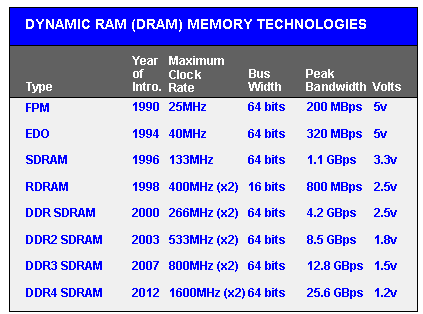
FPM RAM, which stands for “Fast Page Mode RAMÃ is a type of Dynamic RAM (DRAM). The term "Fast Page Mode" comes from the capability of memory being able to access data that is on the same page and can be done with less latency. Most 486 and Pentium based systems from 1995 and earlier use FPM Memory.
EDO RAM
EDO RAM, which stands for "Extended Data Out RAM" came out in 1995 as a new type of memory available for Pentium based systems. EDO is a modified form of FPM RAM which is commonly referred to as "Hyper Page Mode". Extended Data Out refers to fact that the data output drivers on the memory module are not switched off when the memory controller removes the column address to begin the next cycle, unlike FPM RAM. Most early Penitum based systems use EDO
SDRAM
SDRAM , which is short for Synchronous DRAM is a type of DRAM that runs in synchronization with the memory bus. Beginning in 1996 most Intel based chipsets began to support SDRAM which made it a popular choice for new systems in 2001.
SDRAM is capable of running at 133MHz which is about three times faster than FPM RAM and twice as fast as EDO RAM. Most Pentium or Celeron systems purchased in 1999 have SDRAM.
DDR RAM
DDR RAM, which stands for "Double Data Rate" which is a type of SDRAM and appeared first on the market around 2001 but didn’t catch on until about 2001 when the mainstream motherboards started supporting it. The difference between SDRAM and DDR RAM is that instead of doubling the clock rate it transfers data twice per clock cycle which effectively doubles the data rate. DDRRAM has become mainstream in the graphics card market and has become the memory standard
DDR2 RAM
DDR2 RAM, which stands for "Double Data Rate 2" is a newer version of DDR which is twice as fast as the original DDR RAM. DDR2RAM came out in mid 2003 and the first chipsets that supported DDR2 came out in mid 2004. DDR2 still is double data rate just like the original DDR however DDR2-RAM has modified signaling which enables higher speeds to be achieved with more immunity to signal noise and cross-talk between signals.
RAMBUS (RIMM) RAM
RAMBUS RDRAM is a type of ram of its own, it came out in 1999 and was developed from traditional DRAM but its architecture is totally new. The RAMBUS design gives smarter access to the ram meaning that units can prefetch data and free some CPU work. The idea behind RAMBUS RAM is to get small packets of data from the RAM, but at very high clock speeds. For example, SD RAM can get 64bit of information at 100MHz where RAMBUS RAM would get 16bits of data at 800MHz. RIMM ram was generally unsuccessful as Intel had a lot of problems with the RAM timing or signal noise. RD RAM did make an appearance in the Sony Playstation 2 and the Nintendo 64 game consoles.
HDD VS SSD
HDD VS SSD

Hard Disk Drive (HDD)
A PC hard disk drive (HDD) is a non-unpredictable memory equipment gadget that controls the situating, perusing and composing of the hard circle, which outfits information stockpiling. Hard circle drives are generally utilized as the principle stockpiling gadget in a PC. HDDs regularly store working framework, programming programs and different documents, and can be found in personal computers, cell phones, purchaser hardware and undertaking stockpiling exhibits in server farms.
A hard plate drive - frequently abbreviated to hard drive - and hard circle are not very similar things, however they are bundled as a unit and either term can allude to the entire unit.
In a PC, a HDD is generally found in the drive sound and is associated with the motherboard through an ATA, SATA or SCSI cable. The HDD is likewise associated with a force flexibly unit and can keep put away information while shut down.
A hard drive is divided into one of more partitions, which can be further divided into logical drives or volumes. Usually a master boot record (MBR) is found at the beginning of the hard drive and contains a table of partition information. Each logical drive contains a boot record, a file allocation table (FAT) and a root directory for the FAT file system.
| Solid-State Drive (SSD) |
Solid State Drive (SSD) or Solid-State Disk (SSD), is a capacity gadget that stores information on non-unstable memory. Strong State implies capacity that doesn't require moving parts. Dissimilar to Hard Disk Drive (HDD), there are no moving parts to a SSD. A few focal points of SSD are quicker access time, quiet activity and lower power utilization.
SSDs have a few different favorable circumstances over hard drives too. For instance, the read exhibition of a hard drive decreases when information gets divided, or split up into various areas on the circle. The read presentation of a SSD doesn't reduce dependent on where information is put away on the drive. Accordingly defragmenting a SSD isn't fundamental. Since SSDs don't store information attractively, they are not powerless to information misfortune because of solid attractive fields in closeness to the drive. Moreover, since SSDs have no moving parts, there is far less possibility of a mechanical breakdown. SSDs are additionally lighter, calmer, and utilize less force than hard drives. This is the reason SSDs have gotten a famous decision for PCs.
While SSDs have numerous points of interest over HDDs, they likewise have a few downsides. Since the SSD innovation is much more up to date than customary hard drive innovation, the cost of SSDs is considerably higher. Starting at mid 2011, SSDs cost around 10 fold the amount of per gigabyte as a hard drive. In this manner, most SSD drives sold today have a lot littler limits than practically identical hard drives. They additionally have a set number or compose cycles, which may make their exhibition corrupt after some time. Luckily, more current SSDs have improved dependability and should most recent quite a while before any decrease in execution is recognizable. As the SSD innovation improves and the costs keep on falling, all things considered, strong state drives will start to substitute hard plate drives for most purposes.
CPU VS GPU
CPU VS GPU
What is a CPU?
Constructed from millions of transistors, the CPU can have multiple processing cores and is commonly referred to as the brain of the computer. It is essential to all modern computing systems as it executes the commands and processes needed for your computer and operating system. The CPU is also important in determining how fast programs can run, from surfing the web to building spreadsheets.
What is a GPU?
The GPU is a processor that is made up of many smaller and more specialized cores. By working together, the cores deliver massive performance when a processing task can be divided up and processed across many cores.What is the difference?
CPUs and GPUs process tasks in different ways. Regarding interrelations, they are often compared with brain and brawn. A CPU (the brain) can work on a variety of different calculations, while a GPU (the brawn) is best at focusing all the computing abilities on a specific task. That is because a CPU consists of a few cores (up to 24) optimized for sequential serial processing. It is designed to maximize the performance of a single task within a job; however, the range of tasks is wide. On the other hand, a GPU uses thousands of smaller and more efficient cores for a massively parallel architecture aimed at handling multiple functions at the same time.
Modern GPUs provide superior processing power, memory bandwidth and efficiency over their CPU counterparts. They are 50–100 times faster in tasks that require multiple parallel processes, such as machine learning and big data analysis.
CPU
|
GPU
|
|---|---|
Central Processing Unit
|
Graphics Processing Unit
|
Several cores
|
Many cores
|
Low latency
|
High throughput
|
Good for serial processing
|
Good for parallel processing
|
Can do a handful of operations at once
|
Can do thousands of operations at once
|
CPU vs GPU
Architecturally, the CPU is composed of just a few cores with lots of cache memory that can handle a few software threads at a time. In contrast, a GPU is composed of hundreds of cores that can handle thousands of threads simultaneously.
GPUs deliver the once-esoteric technology of parallel computing. It’s a technology with an illustrious pedigree that includes names such as supercomputing genius Seymor Cray. But rather than taking the shape of hulking supercomputers, GPUs put this idea to work in the desktops and gaming consoles of more than a billion gamers.
Subscribe to:
Posts (Atom)
How To Create a Ping Script in Python || Python Ping Script | Citi Solution
How To Create a Ping Script in Python || Python Ping Script | Citi Solution Youtube Video Source Code import os ipaddr = "google.com...
-
How to Clear Terminal History in Kali Linux | clear_history open ~/.zshrc add the following line alias clear_history='echo ""...
-
PPPoE (Point-to-Point Protocol over Ethernet) PPPoE (Point-to-Point Protocol over Ethernet) is a specification for connecting multiple compu...
-
Network What is Network? A network consists of two or more computers that are linked in order to share resources (such as printers and CD...